Payroll for Hourly Small Business: 6 Options Compared


SMALL BUSINESS INTEL, IN YOUR INBOX
Table of contents
A server picks up a bartender shift on Thursday, and it pays a different rate. By Sunday she has worked 43 hours, earned a share of the tip pool, and crossed into overtime. On Monday, her one paycheck has to get all of it right.
That’s payroll for hourly small business teams: hours that shift every week, more than one pay rate, tips, and overtime on top. Hourly workers made up 55.6% of US wage and salary workers in 2022, according to the Bureau of Labor Statistics (BLS). Even so, most payroll comparisons rank tools on 50-state filing and global payouts, not on what your team needs.
This guide compares six payroll options on what hourly teams need. It helps you decide between standalone and integrated payroll, then walks you through moving off manual payroll.

Time is money. Literally.
Stop copy-pasting between documents, and start sending hours directly to your payroll system.
Quick Answer: What to Look for in Payroll for Your Hourly Team
The best payroll for an hourly team pulls hours straight from your time clock, calculates overtime, and files your taxes for you. Which tool fits depends on the rest of your setup:
- Payroll, time clock, and scheduling in one app: Homebase.
- Mixed hourly and salaried teams with benefits: Gusto.
- Teams that keep their books in QuickBooks: QuickBooks.
- Flat-rate pricing with multi-state filing: OnPay.
- Square POS shops: Square Payroll.
- The lowest payroll-only price: Patriot.
For a 10-person hourly team, list prices run from about $109 to $218 a month once you add a time clock and scheduling. We break down the math below.
Standalone or Integrated: Which Payroll for Hourly Small Business Teams Fits?
Choosing hourly payroll software starts with one question: do your hours already live in the same place as your payroll?
What Is the Difference Between Standalone and Integrated Payroll?
Standalone payroll calculates pay and files taxes, but you bring in the hours from somewhere else. Integrated payroll shares one record with your time clock, and often your schedule, so hours flow into paychecks without re-entry.
Standalone works well when hours barely change or your team is salaried. Integrated pays off when overtime, shift swaps, and multiple roles change the math every pay period. Hourly teams with changing shifts usually get the most from integrated payroll.
The Decision Matrix: Six Questions to Ask Before You Pick a Tool
Answer these six questions, then see which column sounds more like your business.
| Question | Standalone payroll fits if… | Integrated payroll fits if… |
|---|---|---|
| How do hours get into payroll? | Hours come from one system that already exports cleanly, or your team is salaried. | You re-key hours from timecards, spreadsheets, or a separate time clock export. |
| How much do hours change? | Hours are the same each pay period. | Overtime, shift swaps, split shifts, or multiple roles change each period. |
| Do you pay tips or multiple pay rates? | No. | Yes. |
| Who builds the schedule? | You have a separate scheduling tool you like. | You want your schedule, time clock, and payroll to share one record. |
| What do you need beyond payroll? | Benefits administration, deep HR, or the tools your accountant already uses. | Time-off requests, shift trades, team messaging, and labor cost tracking. |
| Who runs payroll? | A dedicated payroll or HR admin. | An owner or manager who also runs the floor. |
Be honest with yourself about the left column. If your team is mostly salaried and you want deep benefits administration, or your accountant lives in QuickBooks, a standalone tool can be the better call. If your team clocks in, swaps shifts, and works more than one role, integrated payroll removes the hand-off where errors start.
Homebase Payroll is built for that second group, and it connects with POS systems such as Square, Clover, and Toast. For the bigger picture, read our payroll processing guide.
What Payroll for Hourly Small Business Teams Has to Handle
Hourly payroll has to handle variable hours, overtime after 40 hours in a workweek, multiple pay rates, tips, and break rules that change by state. That’s why accurate time tracking comes first: payroll can only be as accurate as the hours it receives.
Overtime and Variable Hours
The Fair Labor Standards Act (FLSA) requires covered, nonexempt employees to get overtime pay of at least one and one-half times their regular rate after 40 hours in a workweek. Overtime can’t be waived by agreement, according to the U.S. Department of Labor (DOL). Some states add daily overtime on top of that.
As a Project Lead III on the Homebase Payroll Implementation team, I help small businesses set up payroll, and my advice for owners is simple: review time cards daily, not just on payroll day, so overtime never shows up as a surprise. Overtime alerts help too, since a heads-up before someone crosses 40 hours lets you adjust the schedule while there’s still time.
Multiple Pay Rates
Hourly team members often cover more than one role, and each role can pay differently. Your payroll tool needs to hold more than one rate per person and apply the right one to the right hours. We track multiple wage rates for each employee in Homebase, so the right rate follows the right shift.
Tips and Breaks in Restaurants and Retail
Payroll for restaurants comes with an extra step: pulling POS tips, splitting them, and getting them into pay.
Christofer Peralta, a Customer Success Manager in Partnerships who works with restaurant customers at Homebase, described one owner who used to pull the week’s tip numbers from her POS, add them up, divide them, and set an hourly tip rate for each employee before running payroll. Now the tips come over automatically, and running payroll takes about ten seconds.
Homebase Tip Manager, an add-on at $25 per location per month, pulls tips from your POS, calculates the tip pool, and adds it to timesheets.
Breaks add another layer. Federal law doesn’t require meal or rest breaks. Short breaks of about 5 to 20 minutes are paid when you offer them, and state laws can add their own rules, according to the DOL. Payroll for retail teams runs into the same issue, since part-time and seasonal shifts make hours harder to predict.
Direct Deposit and Tax Filing
Direct deposit and automatic tax filing are the baseline for any payroll software with direct deposit, so compare timing and fees, not whether they exist. Ask how many days a provider needs between running payroll and payday, because payroll with direct deposit only helps if your team is paid on time.
Filing matters just as much. Late tax deposits cost 2% to 15% of the amount owed, depending on how late, according to the Internal Revenue Service (IRS). We handle both in Homebase Payroll, and you can read more about payroll built for hourly teams.
For 2026, employers also report qualified tips and overtime on Form W-2. Check the IRS instructions and ask any provider how it captures those fields.
Payroll for Hourly Small Business Teams: 6 Options Compared
The best payroll software for small businesses? It depends on the team you run. We make Homebase, so it’s on this list, and we’ll tell you where it isn’t the right fit. We picked tools that publish their prices, then compared them on what hourly teams need. Our methodology has the details.
Prices are list prices as of November 2026. They exclude promotions and extra-state fees, so check each vendor’s pricing page before you buy.
Comparison Table: Price, Scheduling, Time Clock, Hourly Tools, and Free Tier
| Tool | Price (payroll) | Scheduling included | Time clock included | Hourly-specific tools | Free tier |
|---|---|---|---|---|---|
| Homebase | $49 a month + $6 per employee ($29 a month for teams up to 5) | Yes, on every plan | Yes, on every plan | Multiple wage rates with blended overtime, overtime alerts, break tracking, and tip pooling in payroll (Tip Manager add-on pulls POS tips, $25 per location) | Free Basic plan (one location, up to 10 employees) covers scheduling and the time clock. Payroll is paid. |
| Gusto | Simple: $49 + $6 per person. Plus: $80 + $12 per person. Billed monthly. | Plus plan | Plus plan, or Time & Attendance add-on on Simple | Time tracking and PTO management on Plus, plus multiple pay rates and tip credits on Simple. Overtime and break rules aren’t listed. | None |
| QuickBooks | Workforce Payroll: $50 + $7 per employee. Premium: $88 + $13. Billed monthly. | Premium and Elite (create schedules by job or shift) | Premium and Elite (Workforce app or on-site kiosk) | Payroll AI collects hours and flags inconsistencies, and geofencing is on Elite. Overtime, tip, and break rules aren’t listed. | None (30-day free trial on the base fee) |
| OnPay | $49 + $6 per worker. Billed monthly. | Through integrations such as Deputy and When I Work | Add-on: $15 + $4 per worker | Time Tracking add-on: custom overtime and break rules, geofencing, supervisor approval. Tip handling isn’t listed on its payroll or pricing pages. | None (first month free) |
| Square Payroll | $35 + $6 per person. Billed monthly. | Square Plus (staff management tools) | Square Plus (timecards, Team App) | Direct tips imported from Square POS. Square Plus adds timecards with break and overtime rules and tip pooling. | None for payroll |
| Patriot | Full Service: $37 + $5 per worker (Basic: $17 + $4, you file taxes). Billed monthly. | None listed | Add-on: $6 + $2 per employee | Up to 25 pay rates per employee. The Time & Attendance add-on imports hours into payroll and adds custom overtime rules. Tip and break handling aren’t listed. | None (30 days free, then 50% off for 3 months) |
Homebase: Payroll Built Around Your Time Clock and Schedule
We built Homebase around your time clock and schedule, then added payroll on top. Approved timesheets flow straight into paychecks, so there’s nothing to re-enter.
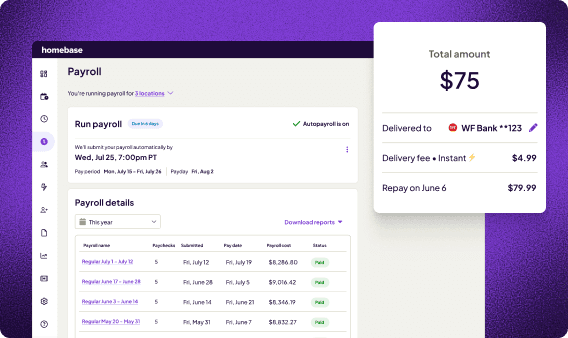
Best for: hourly teams that want payroll, a time clock, and scheduling in one app, alongside the POS they already use.
Key features:
- Payroll runs straight from your timesheets, with multiple wage rates, tip pools, break compliance, overtime, and PTO accounted for.
- Automated tax calculation, filing, and payment, plus direct deposit, printable checks, W-2s, and 1099s.
- Scheduling, a free time clock, and timesheets live in the same app as payroll.
- A dedicated payroll expert migrates your data for free, with live support from 7am to 7pm CT.
Pricing: Payroll is $49 a month plus $6 per active employee, or $29 a month for teams up to 5. Plans are per location on annual billing: Basic is free for one location and up to 10 employees, Essentials is $24 a month, Plus is $56, and All-in-One is $96.
What users say: Compliance is where this pays off for Kris Herbert, who owns The Gym Venice in Venice, California: “I feel more comfortable using it because I feel like I’m compliant with California’s labor laws, which is great.”
Our take: We built Homebase for hourly teams, so if benefits administration is your top need, Gusto may be a closer fit. Payroll has no free tier, though new customers can currently get six months of payroll free with the Plus plan (terms apply).
Time is money. Literally.
Stop copy-pasting between documents, and start sending hours directly to your payroll system.
Gusto: Full-Service Payroll With Benefits for Mixed Teams
Gusto is a full-service payroll tool that also covers benefits and HR. It’s a common pick for teams that mix hourly and salaried employees.
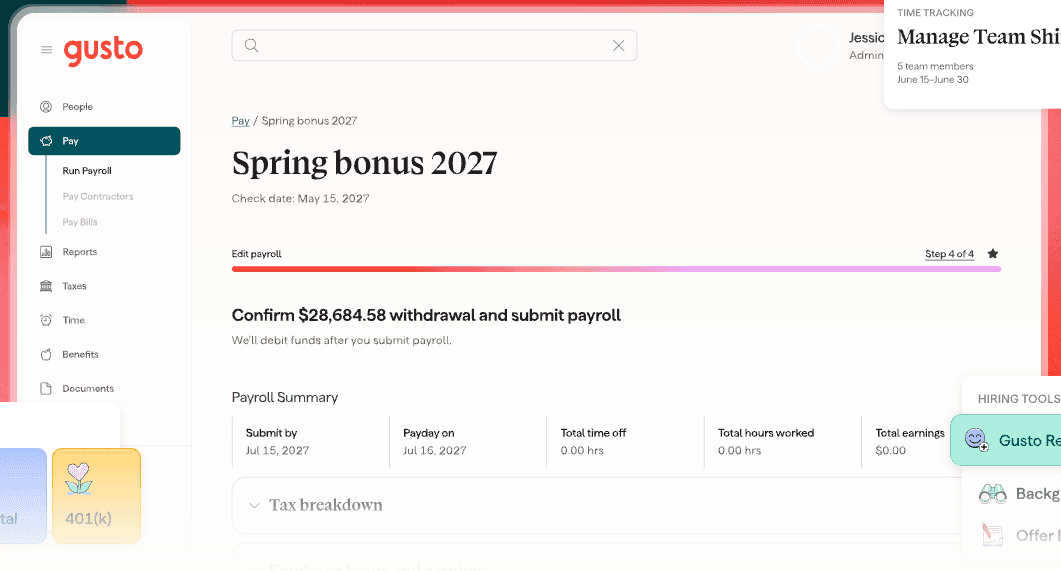
Best for: teams that mix salaried and hourly employees and want benefits in the same system.
Key features:
- Taxes filed automatically with every payroll run.
- Unlimited payroll runs on every plan, with no extra fees for off-cycle payrolls.
- Health insurance, 401(k), and workers’ comp available inside Gusto.
- Faster pay options, including next-day pay (included on Plus) and Instant Pay.
Pricing: Gusto bills month to month and doesn’t list an annual discount, so these are its standard prices. Simple is $49 a month plus $6 per person, and Plus is $80 plus $12 per person.
What users say: On Capterra, store manager Adelaide B. says Gusto lets her “manage my employees’ hours all in one place.”
Our take: Gusto fits teams that mix hourly and salaried employees and want benefits in one system. Simple covers payroll in one state, while Plus adds time tracking, scheduling, multi-state payroll, and unlimited next-day pay. For hourly teams, the trade-off is cost, since per-person fees climb with headcount. Price the full setup before you commit.
QuickBooks: Payroll for Teams Already in QuickBooks
QuickBooks Workforce is Intuit’s payroll tool, built to sit next to your QuickBooks accounting. Time tracking and scheduling arrive on its higher plans.
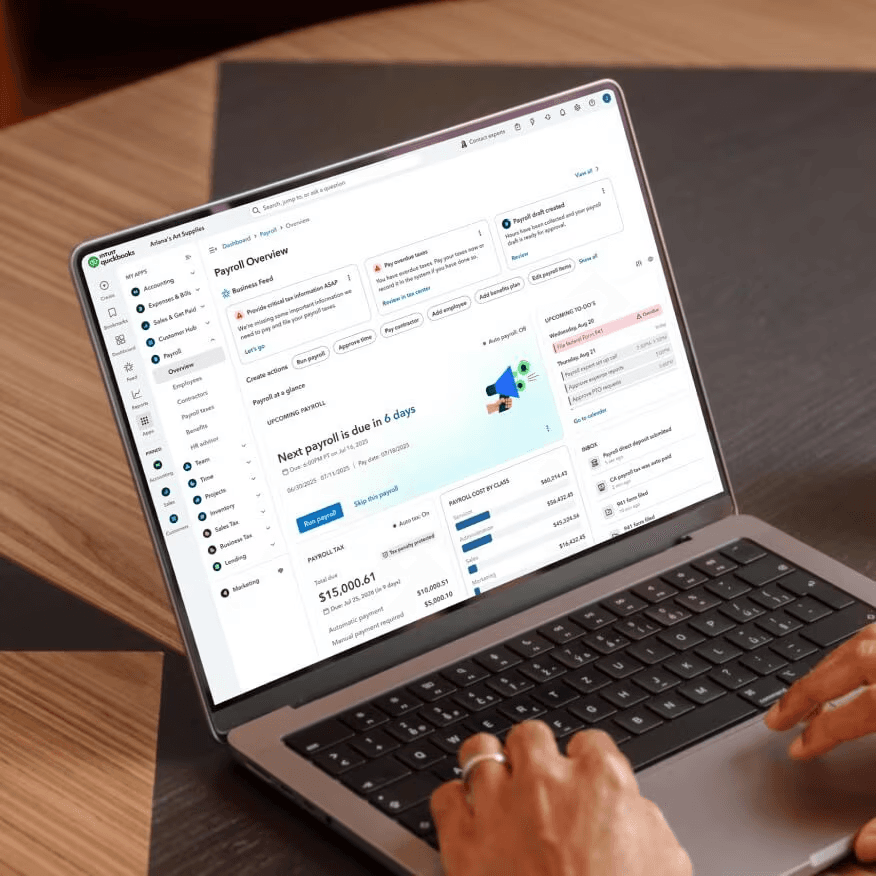
Best for: businesses that keep their books in QuickBooks.
Rating: Capterra 4.5 (990+ reviews) · G2 4.2 (53 reviews, QuickBooks Desktop Payroll) · G2 4.0 (3,910+ reviews, QuickBooks Online)
Key features:
- Full-service payroll that calculates, files, and pays your federal and state payroll taxes.
- Next-day direct deposit on every plan, and same-day direct deposit on Premium and Elite.
- Time tracking, scheduling, and the Workforce app for clocking in come with Premium and Elite.
- Payroll AI that collects hours, spots inconsistencies, and drafts a payroll for you to review.
Pricing: QuickBooks Workforce is month to month with no annual contract, so no annual pricing is listed. Workforce Payroll is $50 a month plus $7 per employee, Premium is $88 plus $13, and Elite is $134 plus $17. The 30-day free trial covers the base fee only, not per-employee fees.
What users say: Capterra reviewers single out the accounting integration. Nameer A., an owner with 2 to 10 employees, says it “integrates seamlessly with QuickBooks accounting, which saves a lot of time on reconciliation.” Reviewers also describe pricing as high and hard to predict.
Our take: QuickBooks fits businesses that already keep their books in QuickBooks. Time tracking and scheduling arrive with Premium and Elite, and the per-employee fee rises with each plan, so price the plan you need before you commit.
OnPay: Flat-Rate Payroll With Multi-State Filing
OnPay is a payroll-first service built around one flat base plan, with multi-state payroll included. Hourly teams add time tracking as a paid add-on.
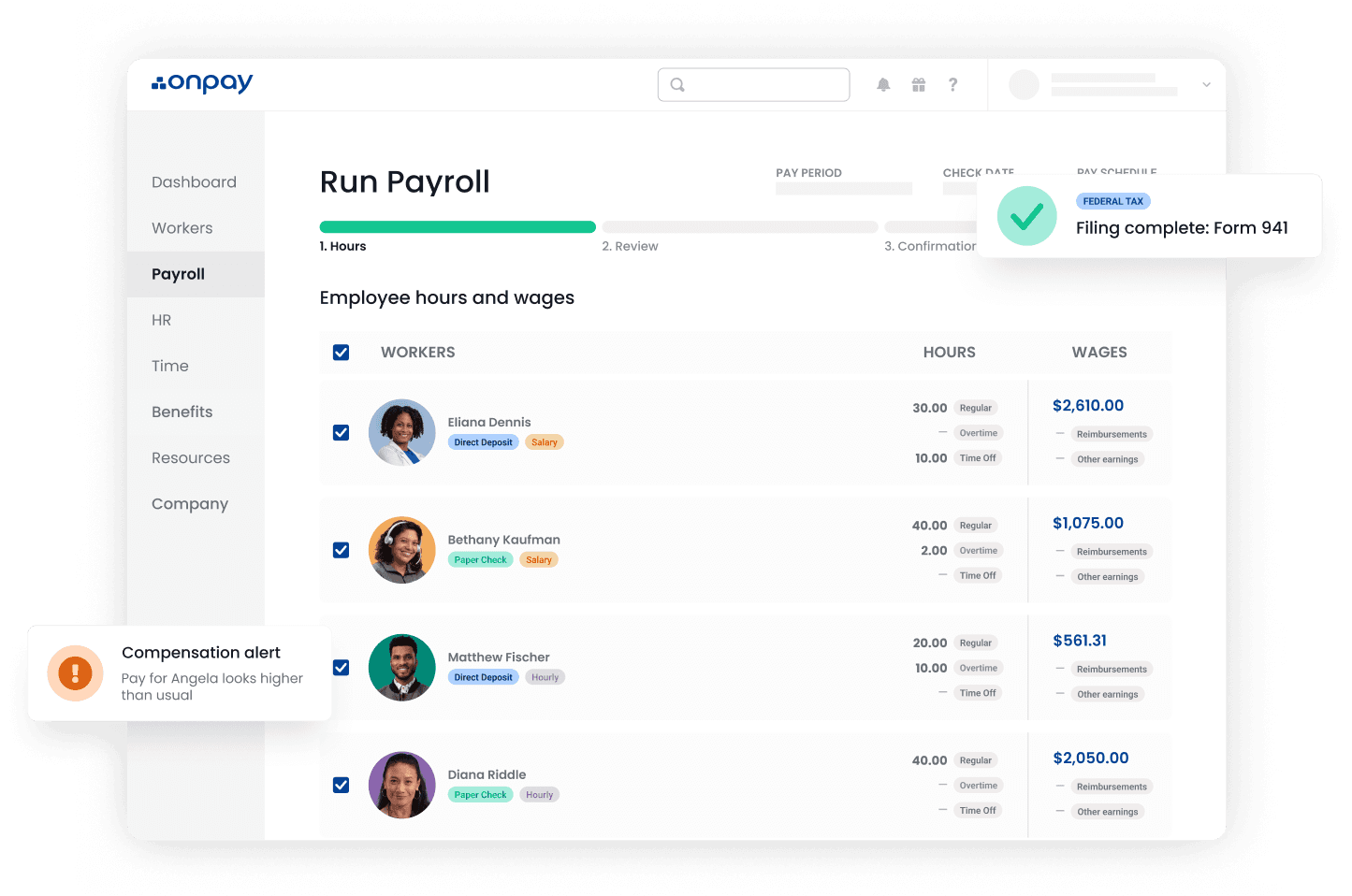
Best for: payroll-first businesses that want one flat plan.
Key features:
- Full-service payroll with unlimited pay runs and automatic federal, state, and local tax filings.
- Multi-state payroll on the base plan, with no extra cost for additional states.
- A Time Tracking add-on with custom overtime and break rules, geofencing, and supervisor approval that syncs into payroll.
- Free account setup and migration of your prior payroll data, with extended weekday support hours (9am to 8pm).
Pricing: OnPay lists monthly pricing only, with no annual option. Payroll Essentials is $49 a month plus $6 per worker. Time Tracking adds $15 a month plus $4 per worker, and the hourly bundle (payroll, time tracking, and HR) is $70 plus $10 per worker. The first month is free.
What users say: Capterra reviewers call it easy to use and affordable for small firms. Steve W., an executive director, says, “I am usually able to complete payroll in about 5 minutes.” Several reviewers note it has no auto payroll option yet.
Our take: OnPay fits payroll-first businesses that want one flat plan with multi-state payroll included. The base plan has no time clock, and scheduling comes through integrations such as Deputy and When I Work. Hourly teams add the Time Tracking add-on and often a separate scheduling tool.
Square Payroll: Payroll for Square POS Users
Square Payroll is built for businesses that already take payments with Square. It pulls timecards and tips from Square POS into your pay runs.
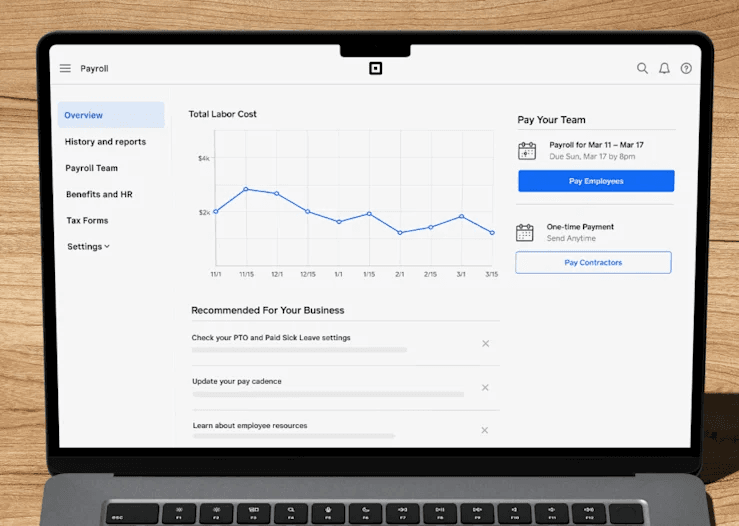
Best for: shops that already run Square POS.
Key features:
- Imports timecards and direct tips from Square POS, so hours and tips flow into your pay runs.
- Full-service payroll with unlimited pay runs, off-cycle payments, and automatic federal and state tax filings.
- Pays by direct deposit, check, or Cash App, with multiple pay rates, commissions, bonuses, and tips.
- The Square Team App for managing your team, plus an add-on for pay-as-you-go workers’ comp.
Pricing: Square Payroll is $35 a month plus $6 per person paid, with no commitment and no annual option listed. Contractor-only payroll is $6 per person. Scheduling and time tools come with Square Plus, which Square’s pricing page lists at $49 a month per location.
What users say: One owner on Capterra, writing about features built into the point of sale, says “you can’t really beat the solution if you use the POS.”
Our take: Square Payroll fits shops that already run Square POS. Scheduling, timecards, and tip pooling are part of Square’s staff management tools, which come with Square Plus or Premium rather than with Square Payroll itself. Its advantages shrink once you’re outside the Square ecosystem.
Patriot: The Lowest Payroll-Only Price
Patriot Software is a budget-minded payroll service from a company that also sells accounting software. Its Full Service plan files your taxes at the lowest payroll-only price in this comparison.
Best for: teams that put price first.
Key features:
- Full Service files federal, state, and local payroll taxes plus year-end forms, and Patriot covers penalties and interest if its own error causes them.
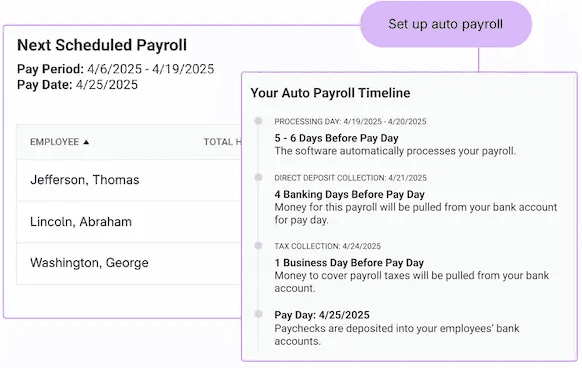
- Auto payroll and unlimited payroll runs, with up to 25 pay rates per employee.
- Free direct deposit, with 4-day and 2-day timing for qualifying customers.
- A Time & Attendance add-on that imports hours into payroll.
Pricing: Full Service Payroll is $37 a month plus $5 per worker paid. Basic Payroll is $17 plus $4, and you file taxes yourself. Patriot bills monthly in arrears with no annual option listed. Each additional state costs $12 a month, and Time & Attendance adds $6 a month plus $2 per employee.
What users say: Capterra reviewers praise its support and its fit for small firms. Terri M., an HR manager, says Patriot has “a great time tracking system that flows right over to run payroll.” Some reviewers report slow direct deposit lead times.
Our take: Patriot fits teams that put price first. It lists no scheduling, and adding a time clock narrows the price gap, so compare the full setup before you decide.
Why Not ADP, Paychex, or Rippling?
This table covers tools that publish their prices. ADP RUN and Paychex quote pricing by request, which makes side-by-side comparison hard. Rippling is an HR and IT suite, and its payroll is priced as part of a broader system. All three are worth a look if your needs go beyond hourly payroll. For a wider view, see our payroll roundup for small businesses.
What Payroll Costs for a 10-Person Hourly Team With a Time Clock and Scheduling
How much does payroll software cost for a small team? For a 10-person hourly team, payroll plus a time clock and scheduling runs from about $109 to $218 a month at list prices.
Why the wide range? Well, costs may creep in when you use separate tools vs. when you use an integrated payroll system.
Christofer Peralta, who works with restaurant customers at Homebase, describes a typical software stack as a POS with a time clock, a separate scheduling app, a payroll provider, a task manager, and a tip manager. Each one is another login, another bill, and another place for hours to get re-keyed.
He puts numbers on it: on top of your POS, timesheets can run $10 to $20, a quality scheduler is another $20 to $50, and payroll often charges per employee whether they’re working or not. Add task and tip management, and a fully built-out stack can run into the hundreds of dollars a month.
Cheapest Payroll Service for Small Business: Payroll-Only Prices Versus Total Cost
If you’re hunting for the cheapest payroll service for small business, start with the payroll-only column. Patriot Full Service ($87) and Square Payroll ($95) have the lowest list prices among tools that file taxes for you. Patriot Basic is cheaper at $57, but you file taxes yourself. From there, add the pieces an hourly team needs.
| Setup | Payroll only | With time clock | Scheduling | Notes |
|---|---|---|---|---|
| Homebase, Basic plan | $109 | $109 | Included | The free plan covers one location and up to 10 employees. |
| Patriot Full Service | $87 | $113 | None listed | Time & Attendance add-on is $6 + $2 per employee. |
| Square Payroll with Square Plus | $95 | $144 | Included (Square Plus) | Adds Square Plus at $49 per location per month. Best for Square POS shops. |
| OnPay | $109 | $164 | Through integrations | Time Tracking add-on is $15 + $4 per worker. |
| Homebase, Plus plan (annual billing) | $165 | $165 | Included | Plus is $56 per location on annual billing. Adds the AI Scheduling Assistant, PTO and time-off controls, and departments and permissions. |
| Gusto (Simple, then Plus) | $109 | $200 | Included on Plus | Gusto bills monthly only. Plus also adds multi-state payroll and unlimited next-day pay. |
| QuickBooks (Workforce Payroll, then Premium) | $120 | $218 | Included on Premium | QuickBooks bills monthly only. Time tracking and scheduling come with Premium. |
Monthly totals for 10 employees paid, before promotions and extra-state fees. Homebase plan prices use annual billing (20% off monthly), while Gusto, QuickBooks, OnPay, Square, and Patriot list monthly pricing only. See Homebase pricing.
Patriot and Square win on payroll-only price, but the gap closes once you add a time clock and scheduling. Our Basic plan covers all three for $109 for teams of up to 10 employees at one location, and it connects with POS systems such as Square, Clover, and Toast. Square works well if your whole shop already runs on Square, though its scheduling and time tools come with Square Plus.
How to Set Up Payroll for Small Business: Switching From Manual to an App in 7 Steps
Moving from paper or spreadsheets to a payroll app takes seven steps, and most small businesses finish in two to four weeks. Here’s how to do payroll for small business teams without the calculator.
Already on another payroll provider? Our guide on how to switch payroll providers covers that move.
Step 1: Gather Your Payroll Setup Information
Pull together your federal tax ID (EIN), state tax accounts, state unemployment rate, business bank account, and pay schedule. For each employee, collect a legal name, address, pay rate, direct deposit details, and start date.
In my experience, setup goes smoothly when you have your previous quarter tax filings on hand, since they fill in a lot of company tax data. You can skip them if you already have your tax ID information. Year-to-date payroll totals help too.
Step 2: Move Hours Onto a Digital Time Clock First
Payroll is only as accurate as the hours that feed it. Get your team clocking in on a phone, tablet, or POS before your first payroll run, so hours arrive digitally. When hours arrive that way, they can feed straight into payroll, so you skip re-keying them from paper or spreadsheets. That saves you time and cuts errors.
Kris Herbert, the Venice gym owner we heard from earlier, shows how much time that can save: “Payroll used to take me about two hours. Now, if everyone’s punches are right, I can get the whole thing done in minutes.”
Step 3: Choose Your Pay Schedule and Your Tool
Pick weekly, biweekly, or semi-monthly, and check your state’s pay frequency rules first, since they vary. Then use the decision matrix and the comparison table above to choose a tool.
Step 4: Set Up Each Employee
Enter pay rates, including more than one rate for team members who cover multiple roles. Collect W-4s, I-9s, and direct deposit forms. In Homebase, new hires complete their W-4, I-9, and direct deposit forms through online self-onboarding.
Step 5: Review Timesheets Before You Run Anything
Look for missing punches, forgotten clock-outs, and overtime before payroll starts. Then fix any edits in the timesheet, not in a spreadsheet, so your records stay in one place.
Step 6: Run a Test Payroll and Compare It to Your Manual Math
Before your first live run, compare the new numbers to your old method. Differences usually point to a missing rate, a break rule, or a tax setup detail.
If you switch to Homebase, a payroll expert helps with setup and moves your data over for free, so you’re not rebuilding everything by hand.
Step 7: Run Your First Live Payroll and Retire the Spreadsheet
Start your first live payroll at the beginning of a pay period if you can. Then keep your time and pay records, since the DOL requires employers to keep them. Hold on to your old files until your first quarter closes cleanly.
Frequently Asked Questions About Payroll for Hourly Small Business Teams
What Is the Best Payroll Software?
It depends on your team, but hourly teams should look for payroll that pulls hours from the time clock, calculates overtime, and files taxes. Homebase fits teams that want payroll, a time clock, and scheduling in one app. Gusto suits mixed teams with benefits, and QuickBooks suits teams already in its accounting.
Can I Get Payroll With Direct Deposit for a Small Business?
Yes. Every tool in this comparison offers payroll with direct deposit, though timing differs. QuickBooks offers next-day deposit on every plan, Patriot lists free 4-day and 2-day options, and Square offers Two-Day Payroll. Ask any provider how many days it needs between running payroll and payday.
How Do You Do Payroll for Hourly Employees?
Multiply each employee’s hours by their pay rate, then pay overtime at one and a half times the regular rate after 40 hours in a workweek (some states also set daily overtime). Add tips, subtract taxes and deductions, deposit the taxes, and file the required forms. A time clock that feeds payroll keeps the hours accurate.
Can I Do My Own Payroll for My Small Business?
Yes, but hourly payroll changes every pay period. You calculate overtime at one and a half times the regular rate after 40 hours in a workweek, withhold taxes, deposit them on schedule, and keep time and pay records. Late deposits draw IRS penalties of 2% to 15%, which is why many owners move to a payroll tool. The Department of Labor (DOL) spells out the overtime rule, and the Internal Revenue Service (IRS) lists the late deposit penalty tiers.
Does Payroll Software Calculate Overtime Automatically?
Yes, once it has your hours. Payroll tools apply overtime rules to the hours they receive, so the time clock matters as much as the payroll. In Homebase, payroll applies blended overtime across multiple wage rates. OnPay’s Time Tracking add-on lets you customize overtime rules, and Square Plus timecards include break and overtime rules. Some states add daily overtime, so confirm your tool handles your state’s rules before your first run.
How Many Days Before Payday Do I Need to Run Payroll?
It depends on the provider and the deposit speed you pick, so plan to run payroll a day or two before payday. For example, QuickBooks needs payroll submitted by 5pm the business day before for next-day deposit, and Square’s Two-Day Payroll lets you submit up to two business days ahead. Check your provider’s current cutoff times before you set a pay schedule.
Can I Pay Contractors in the Same Payroll as Employees?
Yes, in most of the tools compared here. Patriot lets you pay 1099 contractors in the same payroll as employees, with direct deposit if you use it. OnPay pays both W-2 and 1099 workers, Square Payroll covers employees and contractors, and Homebase files W-2s and 1099s. Contractors don’t have taxes withheld, and you file a 1099 for them at year end instead of a W-2.
Choosing Payroll for Your Hourly Small Business
Three things matter most when you pick payroll for an hourly team:
- Start at the time clock. Payroll is only as accurate as the hours it receives.
- Compare the whole stack. Price payroll, a time clock, and scheduling together, not just the payroll line.
- Switch with a plan. A setup checklist, a test payroll, and a clean cutover keep your first paycheck right.
Homebase Payroll sits right next to the time clock and schedule you may already use. Hours flow straight into payroll, we file your taxes, and a payroll expert helps move your data over. When you’re ready to see it in action, try Homebase free for 14 days. No credit card needed, and you can add payroll whenever you’re ready. New customers can also get six months of payroll free with the Plus plan (terms apply).
Let’s make your team unstoppable.
Time is money. Literally.
Stop copy-pasting between documents, and start sending hours directly to your payroll system.