
Learning how to make a schedule in Excel is one of the first things small business owners figure out. It's already on your computer, it costs nothing, and it gets the job done. You set up a grid, drop in names and shifts, and you're running.
But the cracks show up fast. You're rebuilding the same layout from scratch every week. You update a shift and have to re-send the whole file. Someone shows up for a shift you changed two days ago. What started as a quick fix turns into a recurring time sink.
This guide covers how to make a schedule in Excel from scratch, including weekly schedules, employee schedules, rotating shifts, and formulas. It also covers exactly when Excel stops being worth the effort and it’s time to switch to a tool actually made for scheduling.
TL;DR: How to make a schedule in Excel
Whether you're building a work schedule in Excel for your team or a weekly timetable for personal tasks, the process is straightforward.
- Open Excel and use a built-in template, or start from scratch with days as columns and names as rows.
- Add shift times, use dropdowns to prevent typos, and apply conditional formatting to flag overtime.
- Save and share via email or a shared drive, and update manually every time the schedule changes.
- Excel works well for small teams but can't send notifications, track labor costs, or let employees check their shifts from their phones.
- For a free option that handles all of that, try Homebase.
{{banner-cta}}
What types of schedules can you make in Excel?
Knowing how to make a schedule in Excel means knowing which type fits your work. Here's a quick breakdown.
Work and employee schedules. Managing who works when, assigning roles, and tracking total hours. This is what most small business owners actually need. When you make a work schedule in Excel, you're coordinating multiple people across shifts while making sure nobody accidentally gets scheduled for 45 hours.
Weekly schedules. The most common format for recurring activities and team coordination. When you make a weekly schedule in Excel, days run across the top and names or tasks run down the side. A restaurant manager might use this to see at a glance who's covering Friday dinner service, or a retail store to confirm weekend coverage before the week starts.
Daily schedules and timetables. Hour-by-hour detail for training days, classroom timetables, and conference agendas. A daily schedule in Excel works well any time you need slots from open to close. If you need a timetable in Excel with time slots down the left column and activities across the top, the grid handles it cleanly.
Monthly schedules. Calendar-style views for longer-range planning. A monthly schedule in Excel works well for project milestones, content calendars, and maintenance schedules where you need to see a full month at a glance.
How to make a schedule in Excel (step-by-step)
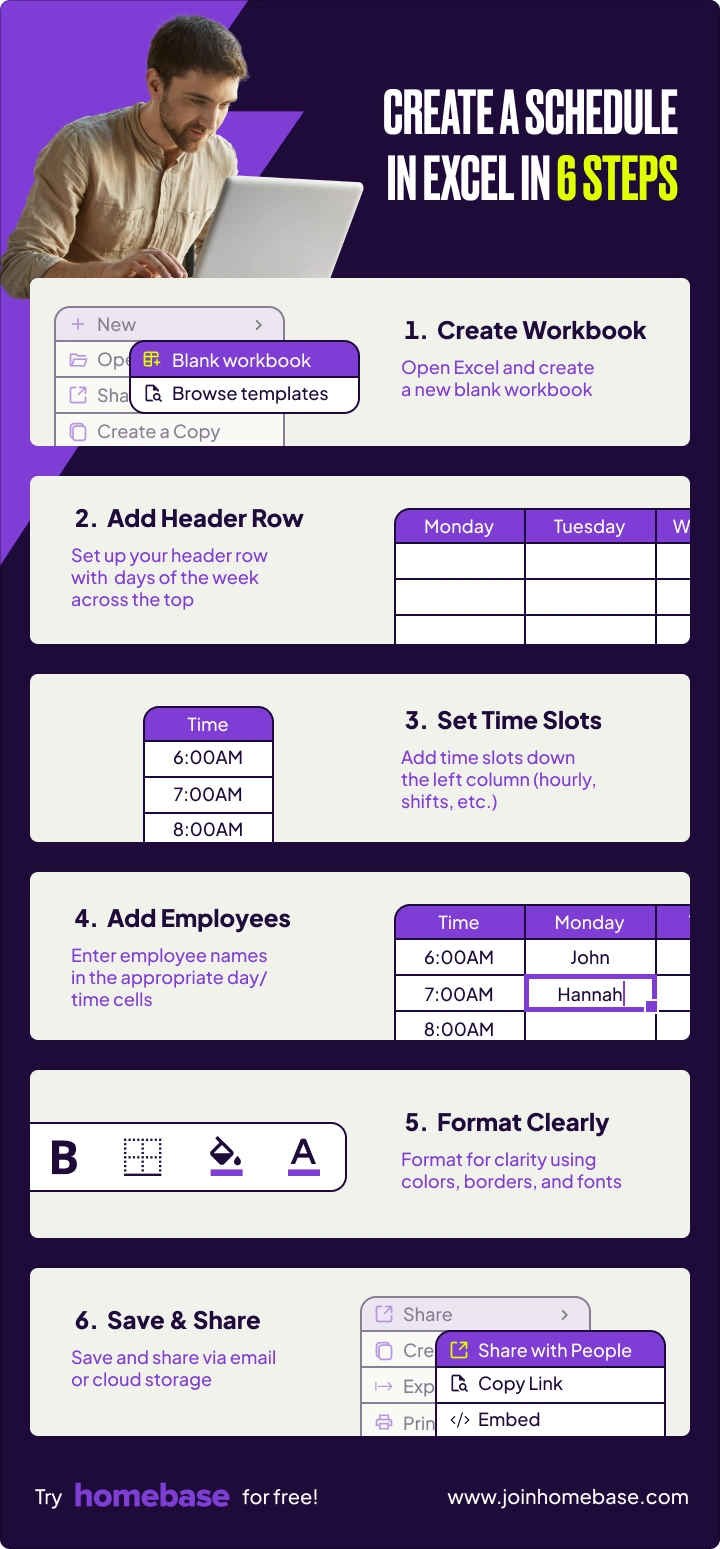
The fastest way to make a schedule in Excel is to start with a clear structure and build from there. These six steps work whether you're putting together a simple weekly schedule for a handful of employees or a more detailed shift schedule across multiple roles. Each step takes minutes once you know the layout that fits your business.
Step 1: Open a blank Excel workbook
Launch Excel and select "Blank workbook." If you'd rather start with a template, browse Excel's built-in options under File, then New.
Step 2: Set up your rows and columns
Setting up your structure correctly saves you from rebuilding it every week.
For a weekly schedule in Excel: Put days across the top (Monday through Sunday in columns B through H) and time slots or tasks down the left side in column A.
For an employee schedule: Put dates across the top and employee names down the side. Or flip it: time slots across the top, names down the side.
Add a header row at the top with your business name, the date range, and any department info. Example: "Coffee Shop Weekly Schedule | January 15-21, 2025"
Step 3: Add your schedule details
Fill in the grid with shifts, tasks, or appointments. Keep cells readable: "Server: 9am-5pm" is fine. Color-code by employee, shift type, or priority using light background colors that keep black text readable.
Step 4: Add employee names to shifts
Click into the cell where a day and time slot intersect, then type the employee's name.
Step 5: Format your schedule for readability
Good formatting turns a working Excel schedule into something your team can actually read at a glance.
- Bold your header row so days and names stand out
- Add borders to separate days and shifts (Home, then Borders, then All Borders)
- Freeze the top row so headers stay visible when scrolling (View, then Freeze Panes, then Freeze Top Row)
- Center-align text for a cleaner look
Keep text at 10-12pt. Use light background colors throughout.
Step 6: Save, print, or share your schedule
Include dates in your filename. "Weekly_Schedule_Jan15-21" beats "Schedule_Final_v3_ACTUAL" every time. Save a blank copy of your structure so next week's daily schedule or employee schedule starts from a clean template.
Here's where Excel's limits start to show: every time you update the schedule, you're manually re-sending files or hoping people check the cloud folder.
How to make a weekly schedule in Excel
If you want to make a schedule in Excel for your hourly team, the weekly format is where most owners start, and with good reason. It maps naturally to how most hourly teams work, gives you a clean seven-day view, and takes about 20 minutes to set up the first time.
To make a weekly schedule in Excel from scratch:
- Put days of the week (Monday through Sunday) across the top row in columns B through H.
- Add employee names or task categories down column A.
- Enter shift times in the cells where each row and column meet.
- Add a "Total Hours" column on the far right using =SUM() to track weekly totals automatically.
The difference between a personal weekly schedule and a team work schedule comes down to complexity. A personal timetable might list tasks by day. A team schedule needs names, shift times, roles, and overtime protection built in.
The hard part isn't building the weekly schedule once. It's rebuilding the same grid every single week. Homebase scheduling lets you duplicate the previous week's schedule with one tap and publish it to your whole team instantly.
How to make a work or employee schedule in Excel
When you need to know how to make a work schedule in Excel for an hourly team, this is the section that actually matters: coordinating multiple people across shifts without accidentally leaving a time slot uncovered or scheduling someone for a sixth day.
Set up your employee schedule structure
The way you structure a work schedule in Excel depends on how you think about coverage. To create an employee schedule in Excel that's easy to read at a glance, choose one of two layouts:
Employee-focused layout: Employee names down column A, days of the week across the top, shift times in the cells. Good for small teams (under 15 people) where you want to see each person's full week.
Shift-focused layout: Time slots down column A (8am-12pm, 12pm-4pm, 4pm-close), days across the top, employee names in the cells. Works better for larger teams or when coverage by time slot matters more than individual weekly totals.
Add shifts and calculate total hours
Enter shifts with simple time ranges (9am-5pm) or include roles (Server: 9am-5pm). For shift scheduling with multiple positions, include the role in the cell. It helps when you're building next week's schedule.
Add a "Total Hours" column on the far right. In the first employee's total cell, enter =SUM(B2:F2) (columns B through F for Monday through Friday). Press Enter, then drag that cell's corner down to copy the formula for all employees.
To flag overtime, add this to a separate column: =IF(SUM(B2:F2)>40,"OVERTIME","OK"). It catches the issue before payroll does.
How to use Excel's built-in schedule templates
Yes, Excel has free work schedule templates built in, which means you can make a schedule in Excel without starting from a blank grid. To find them:
- Open Excel and go to File, then New
- Search "schedule" or "employee schedule" to browse Excel schedule templates for weekly, monthly, and shift-based work
- You can also browse Microsoft's template gallery directly for more options
Picking the right template for your team
The right starting point depends on your business type:
- Restaurants and food service: The "Weekly employee shift schedule" template is built around shift-based coverage and includes time slots by default
- Retail and service businesses: A weekly schedule template works well, especially if your shifts are consistent day to day
Regardless of which template you choose, you'll need to customize it. Once you've adapted an Excel schedule template to your needs, save a blank copy as an Excel template file (.xltx): File, Save As, then Excel Template. That becomes your free employee schedule template for every week going forward. It's also the simplest way to make a work schedule in Excel you don't have to rebuild from scratch.
Formulas and tricks that make Excel scheduling easier
One of the most common questions about using Excel for scheduling is whether you can make a schedule in Excel that updates automatically. The short answer: partially. Excel formulas automate calculations and highlight problems, but they won't build your schedule or notify your team when things change.
Here are the most useful Excel schedule formulas:
- =TODAY() auto-fills the current date in your header so you're not manually updating it each week
- =SUM(B2:F2) calculates a team member's total weekly hours automatically
- =COUNTIF(B2:F2,">0") counts how many days someone is scheduled that week
Conditional formatting is where Excel gets genuinely helpful. Set it up once and your schedule highlights problems automatically. Select your range, go to Home, Conditional Formatting, New Rule, and set cells to turn red when someone is approaching overtime laws thresholds.
These tools help, but they won't catch double-bookings in real time or alert you when someone is scheduled during a time-off request you forgot about.
How to create a rotating or shift schedule in Excel
When you make a schedule in Excel for a team that cycles through shifts, a rotating format distributes hours fairly. It's common in hospitality, healthcare, and manufacturing where you need continuous coverage across days and weeks.
To build a rotating shift schedule in Excel:
- Create your base week pattern: Person A works mornings, Person B afternoons, Person C nights.
- Copy that pattern down for subsequent weeks.
- Shift each person one position forward in the rotation for each new week.
- Repeat until you've covered the full rotation cycle.
The challenge with a rotating schedule in Excel is that every exception breaks the pattern manually. When someone calls in sick or requests time off, you're rebuilding the rotation yourself. Scheduling tools built for shift work handle rotations automatically, redistributing coverage without touching every other row.
Common mistakes to avoid when scheduling in Excel
Even experienced users run into the same problems when they make a schedule in Excel. Most stem from Excel being a spreadsheet tool, not scheduling software.
Not freezing your header rows. Scroll down and suddenly you can't tell which column is Tuesday. Fix: View, Freeze Panes, Freeze Top Row.
Overwriting formulas. You click a cell with a SUM formula and type over it. Formula gone, calculations broken. Fix: protect formula cells or use a distinct background color as a warning.
Version control chaos. You email schedule v1 Monday morning, update it Tuesday, email v2. Now half your team is looking at the wrong version. Fix: save each week as a separate file (Schedule_Jan15-21) or use OneDrive as a single source of truth.
Not planning for changes. Your schedule will change. Build schedules at least two weeks out and accept that Excel schedules require constant manual maintenance.
Skipping a compliance check. In NYC, San Francisco, Seattle, Chicago, and Philadelphia, employers are required to post schedules at least 14 days in advance under predictive scheduling laws. A manual Excel schedule with no publication timestamp gives you no paper trail if an employee files a complaint.
When Excel stops working for team scheduling
According to a 2025 Gallup research on schedule quality study of 18,000+ workers, 62% of U.S. employees lack high-quality work schedules, defined as predictable, stable, and giving people some control over their hours.
Excel doesn't help with any of that. It has no way to notify your team, track their availability, or flag a conflict before you publish. Other signs you've outgrown Excel:
- Spending hours every week building schedules from scratch
- Last-minute changes create chaos when someone calls in sick
- Your team doesn't know when they're working ("When am I scheduled?" texts every Sunday)
- No visibility into labor costs until payroll runs
- Can't check or update the schedule unless you're at a computer
Calvin Su, co-owner of Butter Baker, described it plainly: "I was using Microsoft Excel to track almost everything." Switching to Homebase helped his team save around 20% on labor cost percentage through smarter scheduling.
Excel calculates fine. But it can't notify people, track time-off requests, or adapt when your Thursday closer calls in sick at noon.
A simpler way to schedule your team
Real scheduling tools remove the friction that makes scheduling feel like a second job. Here's what changes when you stop trying to make a schedule in Excel and use a tool built for hourly teams:
- Build schedules in minutes using templates that match your business, not a generic Monday-Friday grid
- Post open shifts and let your team claim them instead of playing phone tag
- Everyone sees updates instantly on their phones the moment you publish
- See labor costs in real time and get overtime alerts before anyone hits 40 hours
"Homebase has cut down the time I take scheduling by half. Like 50%, easily." -- Louis Pereira, Coffee Program Manager, Fix Coffee + Bikes
Ready to stop rebuilding your schedule from scratch every week? Get started with Homebase for free.
FAQs about making a schedule in Excel
How do I create a schedule in Excel?
To create a schedule in Excel, open a blank workbook and set up days of the week across the top row with time slots or employee names down the left column. Enter your schedule details in the grid, format with colors and borders for readability, and save with a descriptive filename that includes the date range.
Does Excel have a work schedule template?
Yes, Excel has free work schedule templates built in. Go to File, then New, and search "schedule" to find employee shift schedules, weekly schedule templates, and monthly calendar options. You can also visit templates.office.com for more Excel schedule template options. Customize any template to match your business and save a blank version for weekly reuse.
Can Excel automatically create a schedule?
To make a schedule in Excel that updates automatically is only partially possible. Excel can automate calculations like total weekly hours using formulas, but it won't assign shifts based on employee availability or build schedules on its own. For automatic scheduling that considers availability and preferences, you need dedicated scheduling software.
How do I create a timetable in Excel?
To create a timetable in Excel, set up time slots down column A (8:00am, 9:00am, and so on) and activities or classes across the top columns. Add rows for location, instructor, or notes if needed. The same approach works if you need to create a work schedule in Excel with hourly time blocks. Just swap in employee names and shift tasks.
What's the best way to make a schedule in Excel?
The best way to make a schedule in Excel is to start with Excel's built-in templates, then customize them for your needs. To make a work schedule in Excel that holds up week over week, freeze your header rows, use formulas to calculate totals automatically, apply color-coding for easy scanning, and save a blank version as a reusable template.
How do I make a rotating schedule in Excel?
To make a rotating schedule in Excel, also called a rotation schedule, create your base pattern for week one, then copy it down for subsequent weeks while manually shifting each person to their next position. For complex rotations, dedicated scheduling software handles the redistribution automatically. Excel requires constant manual updates when patterns change.
How do I make a weekly schedule in Excel?
To make a weekly schedule in Excel, put days of the week (Monday through Sunday) across the top row in columns B through H and employee names or task categories down column A. Enter shift times in the cells where each row and column meet, then add a Total Hours column using =SUM() and freeze the top row so it stays visible as you scroll.
How do I make a daily schedule in Excel?
To make a daily schedule in Excel, set up time slots down column A starting from your earliest shift in 30-minute or one-hour increments, then add tasks, names, or activities across the top columns. This timetable layout works well for training days, class schedules, and event agendas where you need to see what's happening hour by hour.
{{banner-cta}}

Kerry McCreadie is the Senior Manager of Organic Growth at Homebase, leading SEO and content strategy for small businesses with hourly teams. With over 10 years of experience, Kerry has developed hundreds of templates and resources for business owners. They've run an arts and culture nonprofit for over a decade and operated their own photography business, bringing hands-on small business understanding to everything they create.

.webp)
Kerry McCreadie is the Senior Manager of Organic Growth at Homebase, leading SEO and content strategy for small businesses with hourly teams. With over 10 years of experience, Kerry has developed hundreds of templates and resources for business owners. They've run an arts and culture nonprofit for over a decade and operated their own photography business, bringing hands-on small business understanding to everything they create.
