
Most managers spend at least two hours a week on scheduling. Many spend far more. And that's before accounting for the texts, last-minute changes, and the inevitable "wait, I didn't know I was working Saturday."
Creating a work schedule shouldn't eat your week. Whether you're starting from scratch or looking for a faster method, this guide walks you through how to create a work schedule for employees. It includes step-by-step instructions, free templates, and tool options for every team size.
The short answer: How to create a work schedule
Short on time? Here's what you need to know.
To create a work schedule for your employees:
- Collect availability from your team
- Map your coverage needs by day and shift
- Assign employees to shifts, checking for conflicts and overtime
- Publish the schedule at least one week in advance
- Notify your team automatically — or manually if you're using a spreadsheet
Best tools by team size:
- Small team (under 10): Google Sheets or Excel with a free template
- Growing team (10–30): A free scheduling app like Homebase
- Multi-location or complex shifts: Dedicated scheduling software
If you want to skip the spreadsheet altogether, Homebase's free scheduling tool lets you build and publish a schedule in minutes — with automatic notifications to your whole team.
{{banner-cta}}
Why employee scheduling matters for your business
Good scheduling does more than just put people in shifts. It directly impacts your bottom line, employee satisfaction, and daily operations.
When you nail your schedule, everything runs smoother. Your team knows when they're working, you have adequate coverage during busy periods, and labor costs stay predictable. People appreciate knowing their schedules in advance so they can plan their lives outside of work.
Bad scheduling hits your business from multiple angles. Understaffing during rush periods means slower service and frustrated customers. Overstaffing during slow times wastes labor dollars. Last-minute changes burn out reliable employees, and poor scheduling can lead to compliance issues like overtime violations or missed break periods.
A good schedule covers all shifts with qualified employees, accounts for busy and slow periods, respects employee availability, provides advance notice, and builds in flexibility for inevitable changes.
Best practices for scheduling employees
Before you open Excel or pick your scheduling tool, nail down these fundamentals. Good scheduling starts with understanding your business requirements and your team's needs.
Start with your business requirements
Look at your sales data and customer traffic patterns to identify when you actually need staff. Most businesses have predictable busy and slow periods—a coffee shop needs coverage during morning and lunch rushes, while a restaurant needs heavy staffing for dinner service. Calculate how many employees you need for each shift based on expected volume.
Collect employee availability and preferences
Ask your team about their availability before you build the schedule. Some employees have standing commitments like school, childcare, or second jobs that impact when they can work. Collecting this information upfront saves you from creating schedules you'll immediately need to revise. Make sure you update availability regularly, not just once during hiring.
Follow labor laws and regulations
Federal, state, and local labor laws dictate rules around breaks, overtime, and scheduling practices. The Fair Labor Standards Act (FLSA) requires overtime pay for nonexempt employees who work more than 40 hours per week. Some states have additional requirements, like California's daily overtime rules or predictive scheduling laws in cities like Seattle and San Francisco.
Make sure your schedules comply with overtime rules by tracking total hours and flagging when employees approach threshold limits. Build in required break periods based on shift length. If your area has predictive scheduling laws, provide schedules with the required advance notice and compensate employees for last-minute changes.
Schedule to your team's strengths
Every employee brings different strengths to each shift. Some people excel during busy rushes while others perform better during slower periods. Newer team members need shifts alongside experienced staff who can train and support them. Strategic scheduling leverages these dynamics to create stronger shifts where team members complement each other's abilities.
How to make an employee schedule in Excel (step-by-step)
Excel remains one of the most common tools for creating work schedules. It's familiar, flexible, and already installed on most computers. Here's how to build a functional employee schedule from scratch with Excel.
Step 1: Set up your spreadsheet structure
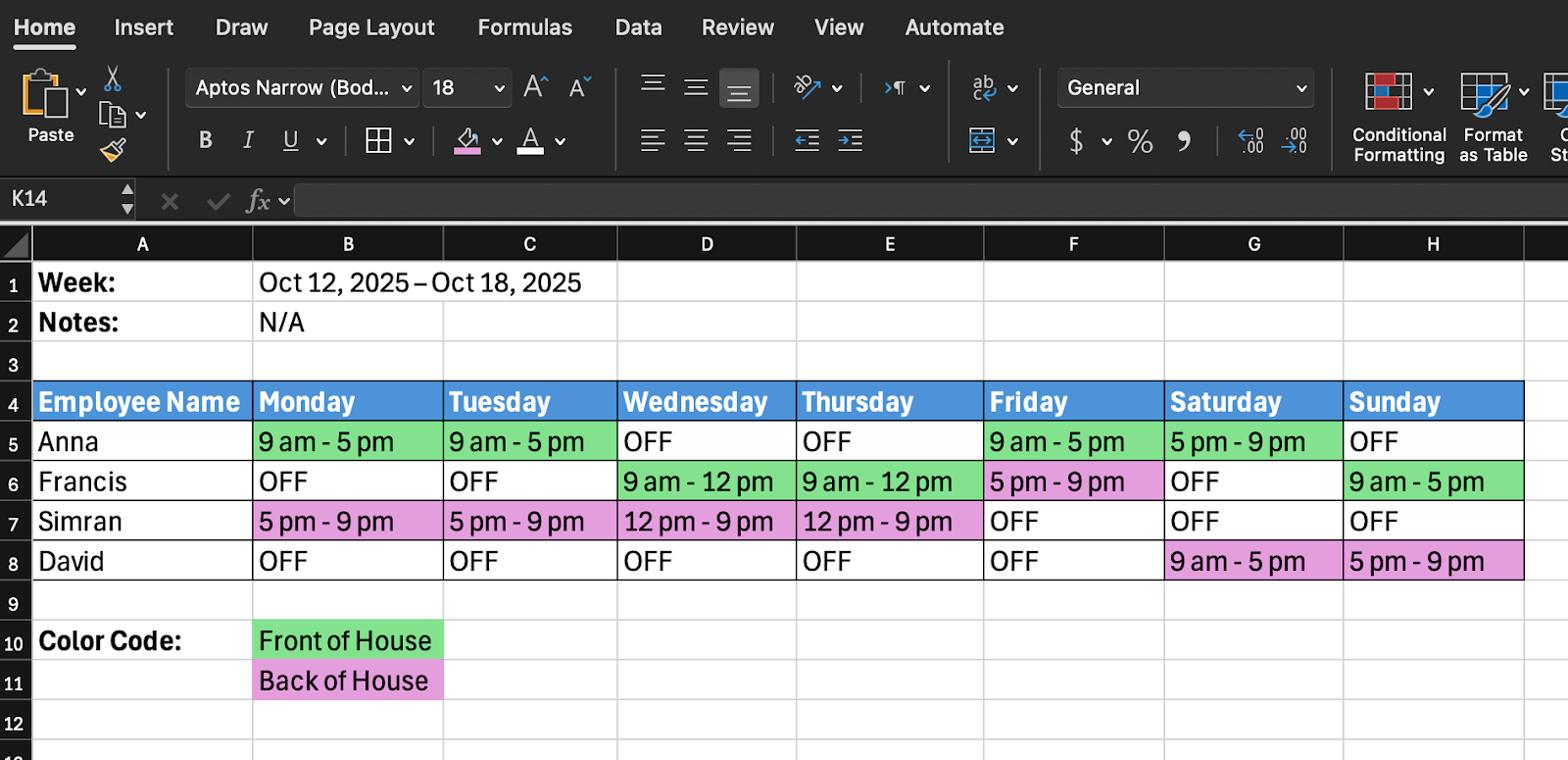
Open a new Excel workbook and create your basic framework. In the first row, create column headers: Employee Name, Monday, Tuesday, Wednesday, Thursday, Friday, Saturday, Sunday. If you run a multi-shift operation, include separate columns for start times and end times for each day.

Step 2: Add your employees and shift details
Fill in shift information for each employee. For simple schedules, enter start and end times (9:00 AM, 5:00 PM). For more detailed schedules, include the specific role or station for each shift.
Use consistent formatting so information is easy to parse. If an employee has the day off, enter “OFF”, use a dash “–”, or leave the cell blank.
Step 3: Format for readability
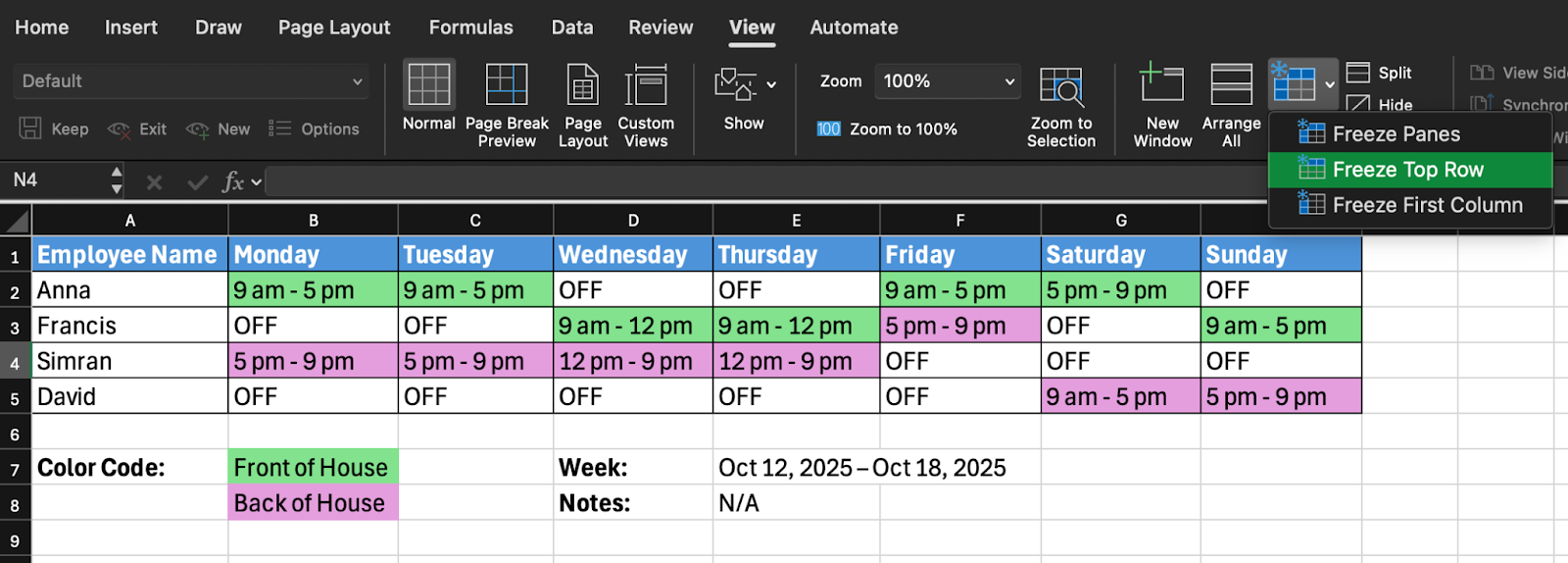
Apply formatting that makes your schedule easy to scan. Use bold text for headers and add background colors to differentiate between shifts or departments. Adjust column widths so all text displays clearly. Freeze the top row and first column so headers stay visible when you scroll.
Step 4: Add formulas to track hours
With the current time format (9am–5pm), you can only calculate hours manually. To automatically calculate hours, you'll need separate start and end time columns for each day.
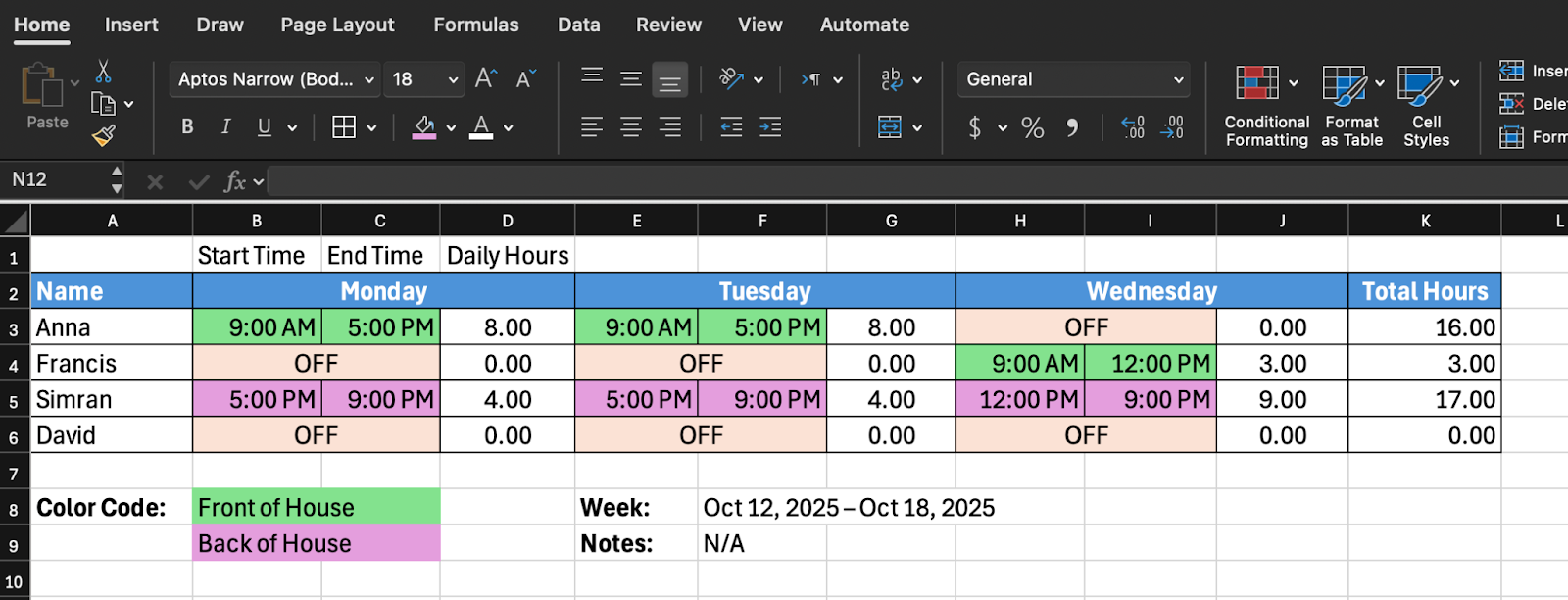
To calculate the number of hours Anna works on Monday, format the “Daily Hours” column as Number (not Time), and use this formula: =IF(OR(B3="OFF",B3=""),0,(C3-B3)*24). This formula:
- Checks if the start time cell is “OFF” or blank
- Returns 0 if it's “OFF” or blank
- Otherwise calculates (End Time - Start Time) × 24 to get hours
Apply this formula for all employees and days, then use =SUM() in a Total Hours column to add up weekly hours.
Step 5: Save as template for reuse
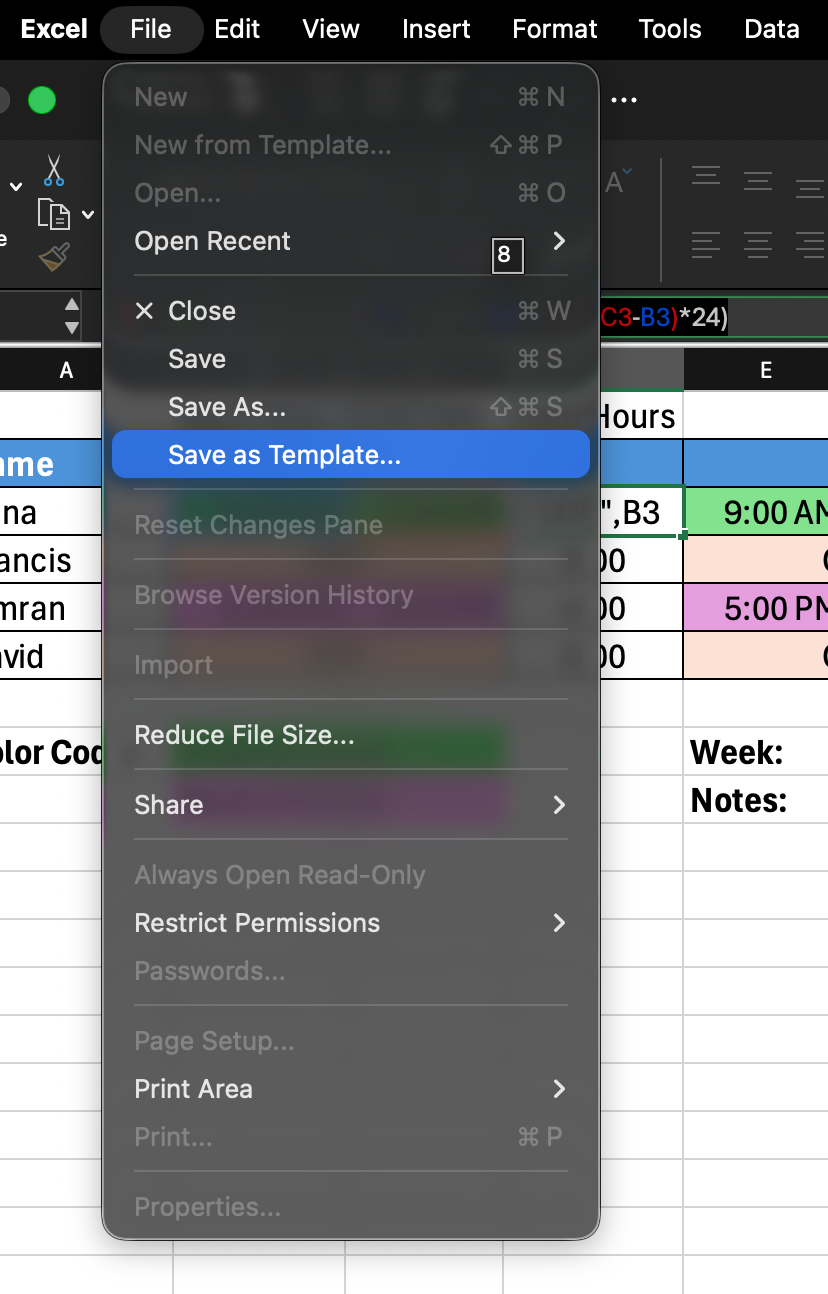
Once you've built a schedule structure that works, save it as a template. Clear out specific shift assignments but keep employee names, formatting, and formulas intact. Save as “Weekly_Schedule_Template.xlsx.” Each week, open your template, save with a new name, and fill in shifts.
Limitations to be aware of when using Excel for scheduling
Excel works well for basic scheduling, but has real limitations. There's no automatic notification system—you'll manually email or print schedules. Excel won't alert you to scheduling conflicts, double-bookings, or overtime violations.
Version control gets messy when multiple people need access, and you'll also need to manually compare scheduled hours against actual worked hours for payroll.
How to make an employee schedule in Google Sheets (step-by-step)
Google Sheets offers similar functionality to Excel with some key advantages—especially around collaboration and access.
Step 1: Create your Google Sheets schedule or use Google Sheets templates
Open Google Sheets and create a new spreadsheet, and you can start building your schedule structure the same way you would in Excel. But Google Sheets also offers pre-built schedule templates that save setup time.
Click “Template Gallery” when you open Google Sheets and look for work schedule templates. These come pre-formatted with professional layouts, built-in formulas, and common schedule structures.

Step 2: Customize your schedule
Adapt the template to match your business needs. Add or remove columns for different shifts, departments, or roles. Include additional information your team needs like break times or station assignments.
Step 3: Share with your team
Click the “Share” button in the top-right corner and add your team members' email addresses. Give them view-only access or editing access if you want employees to request changes directly in the document. Anyone with access can view the schedule from any device with internet.
Step 4: Make it reusable
Make a copy of your formatted schedule (File > Make a Copy), clear out specific shift assignments, and save it as “Schedule Template.” Each week, make a copy of your template and fill in that week's details.
Google Sheets or Excel for employee scheduling?
Google Sheets handles collaboration better than Excel. Multiple people can view or edit simultaneously without version control headaches. Cloud storage means you can access schedules from anywhere. The auto-save feature prevents you from losing work if your computer crashes.
Despite the collaboration advantages, Google Sheets shares Excel's core scheduling limitations. There's no built-in system for employees to request shift swaps, claim open shifts, or update their availability. Like Excel, it requires manual work to compare scheduled hours against actual worked hours for payroll.
When you're ready to on move from spreadsheets, Homebase's free scheduling tool takes about five minutes to set up and sends automatic notifications the moment you publish.
How to create a work schedule in Google Calendar
Google Calendar is a workable option for very small teams: a handful of employees, straightforward shifts, no complex coverage needs.
The method: create a shared work calendar, add each shift as a calendar event, and invite the relevant employee. They'll get a notification and can view their shifts alongside their personal calendar.
It's simple, but the gaps are real. Google Calendar has no scheduling-specific features, no shift swap requests, no availability tracking, no labor cost visibility, and no way to see your whole team's coverage at a glance. If you're managing more than four or five people, you'll outgrow it quickly. At that point, dedicated employee scheduling software is worth the switch.
Common employee schedule types explained
Different businesses need different scheduling patterns. Understanding common schedule types helps you choose the right structure for your team.
What is a 5-2-5-3 schedule?
A 5-2-5-3 schedule is a rotating shift pattern where employees work 5 days, get 2 days off, work 5 days, then get 3 days off. This 15-day cycle creates a predictable rhythm that alternates between shorter and longer weekends. It works well for businesses that operate 7 days a week and need consistent coverage.
What is a 4-5-5-4 work schedule?
The 4-5-5-4 schedule divides the year into quarters with specific week counts: 4 weeks, 5 weeks, 5 weeks, 4 weeks. Retailers often use this schedule because it groups weeks into meaningful periods that align with sales patterns and seasonal changes. This schedule type is less about individual employee shifts and more about organizing your business calendar for planning and reporting.
What is a 3-2-2-3 schedule for employees?
The 3-2-2-3 schedule rotates employees through a pattern of 3 days on, 2 days off, 2 days on, 3 days off. This creates a predictable 10-day cycle that ensures continuous coverage while giving employees regular time off. It's popular in industries that need 24/7 coverage like healthcare, manufacturing, and emergency services.
Other common schedule patterns
- 9/80 schedule: Employees work 80 hours over 9 days, typically nine-hour days Monday through Thursday, eight hours on alternating Fridays, and getting every other Friday off.
- 4/10 schedule: Employees work four 10-hour days per week, giving them three days off.
- Split shift schedule: Employees work two separate shifts in one day with a break of several hours in between. This is common in restaurants for lunch and dinner rushes.
- On-call schedule: Employees remain available to work if needed but aren't scheduled for guaranteed hours.
The right schedule type depends on your industry, hours of operation, and employee preferences. Many businesses combine multiple schedule types—full-time staff on consistent schedules with part-time staff filling gaps.
How to create a rotating work schedule
To build a rotating schedule, map the full cycle before assigning names — pattern first, then people. Decide your rotation length (10 days, 15 days, etc.), slot employees in, and rotate who covers which position each cycle. In Homebase, you can save rotating schedule templates and reuse them each period without rebuilding from scratch.
In the end, the right schedule type depends on your industry, hours of operation, and employee preferences. Many businesses combine multiple schedule types—full-time staff on consistent schedules with part-time staff filling gaps.
How to create a hybrid or work-from-home schedule
Hybrid scheduling is less common for hourly teams, but it comes up. Think of a retail manager who handles admin remotely on slow days, a service business with both field staff and office coverage, or a healthcare practice coordinating in-clinic and telehealth shifts.
What makes hybrid scheduling different is the need to track where people are working, not just when. Before you build the schedule, establish clear rules: which roles require on-site presence, what the minimum in-person coverage looks like each day, and how employees communicate their location. Flexible scheduling policies can help set those expectations in writing.
Use a shared calendar or scheduling tool with notes fields to mark remote versus on-site shifts. The most important thing is consistency. Your team should know the rules and see them reflected in every schedule you publish.
{{banner-cta}}
Free employee schedule templates (downloadable)
Free schedule templates give you a professional starting point. You can find quality templates for Excel and Google Sheets from these sources:
Google Sheets Template Gallery: Access free schedule templates directly in Google Sheets. Look for “Work Schedule” or “Employee Schedule” templates with automatic calculations and clean layouts.
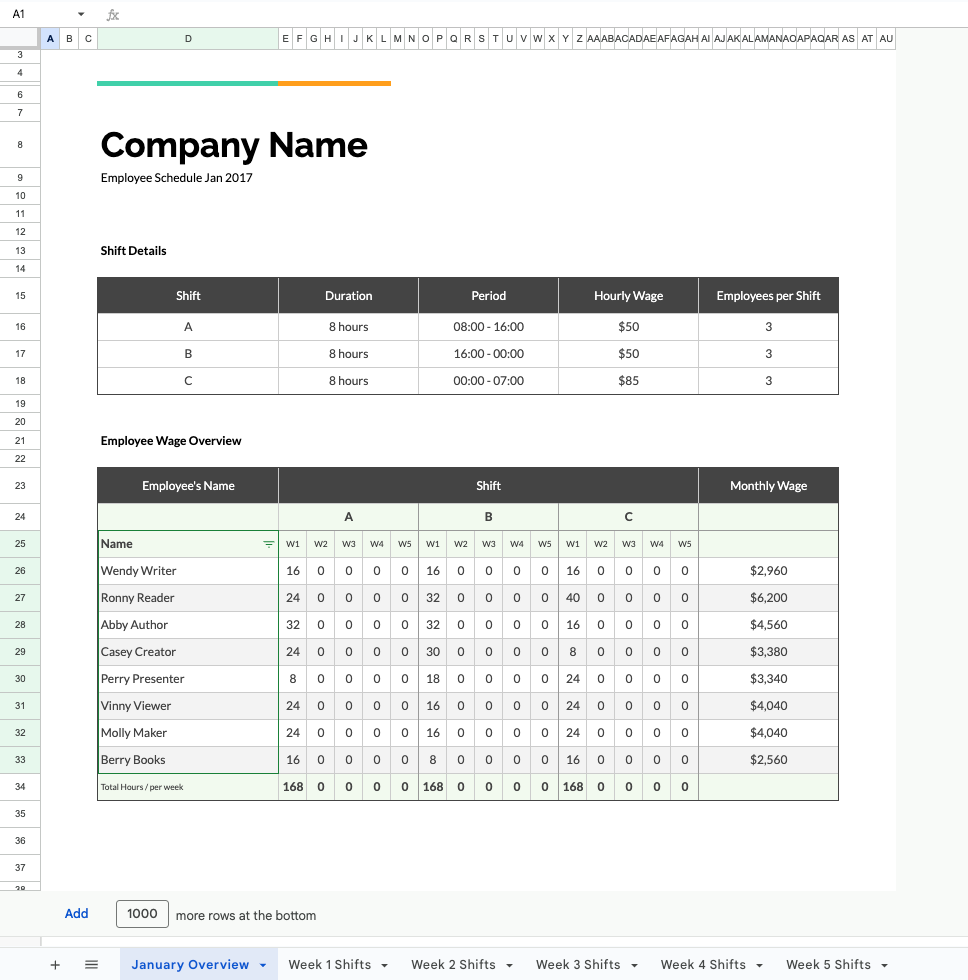
Screenshot of a template titled “Employee shift schedule” on Google Sheets Template Gallery
TheGooDocs: Download free employee schedule templates designed specifically for hourly teams. These templates include sections for multiple shifts, roles, and time-off tracking.
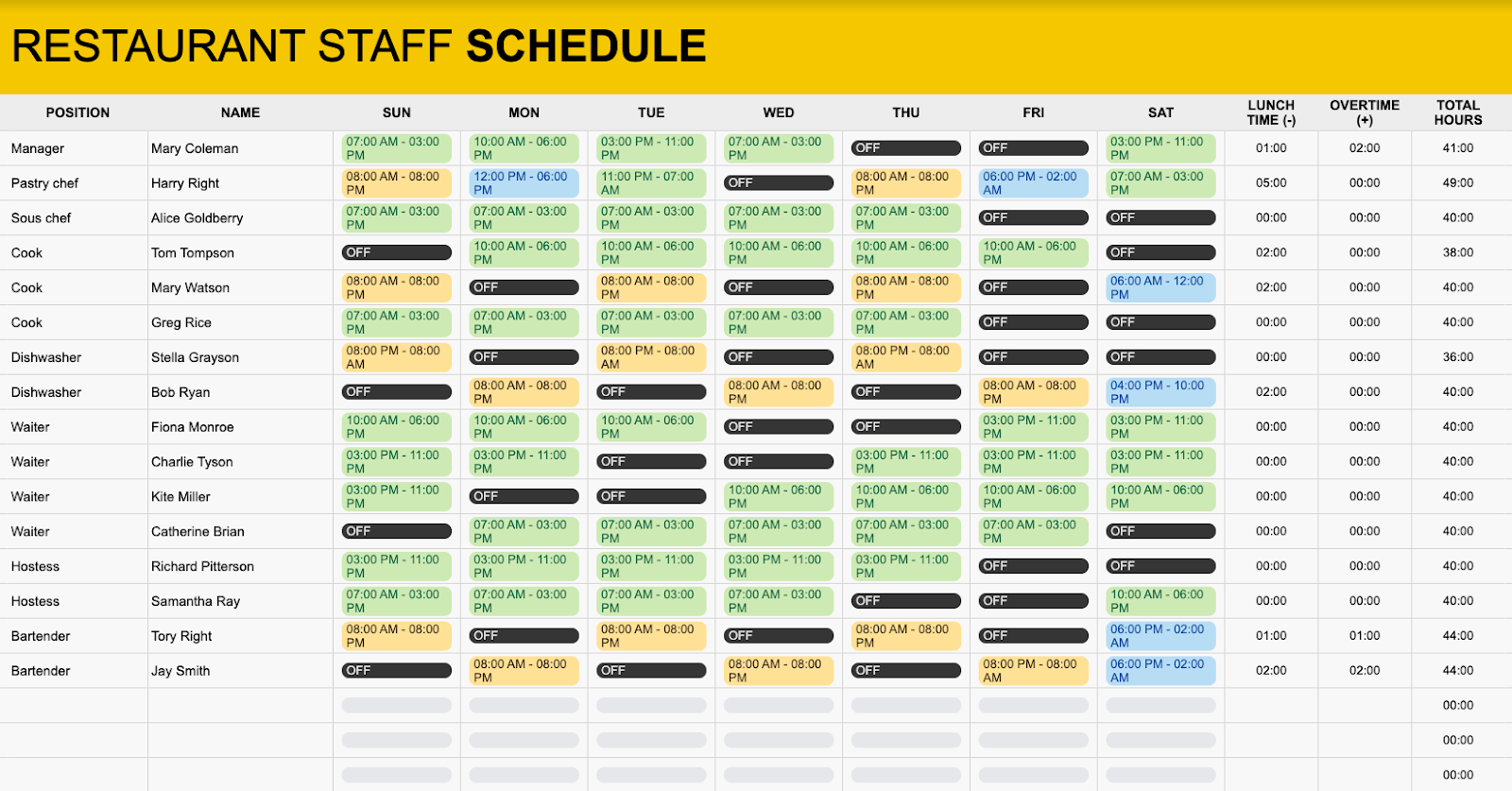
Link: https://thegoodocs.com/schedules/simple-restaurant-staff-schedule.php
Vertex42: Offers a large collection of free Excel and Google Sheets schedule templates including shift schedules, rotating schedules, and on-call schedules. Templates include detailed instructions for customization.
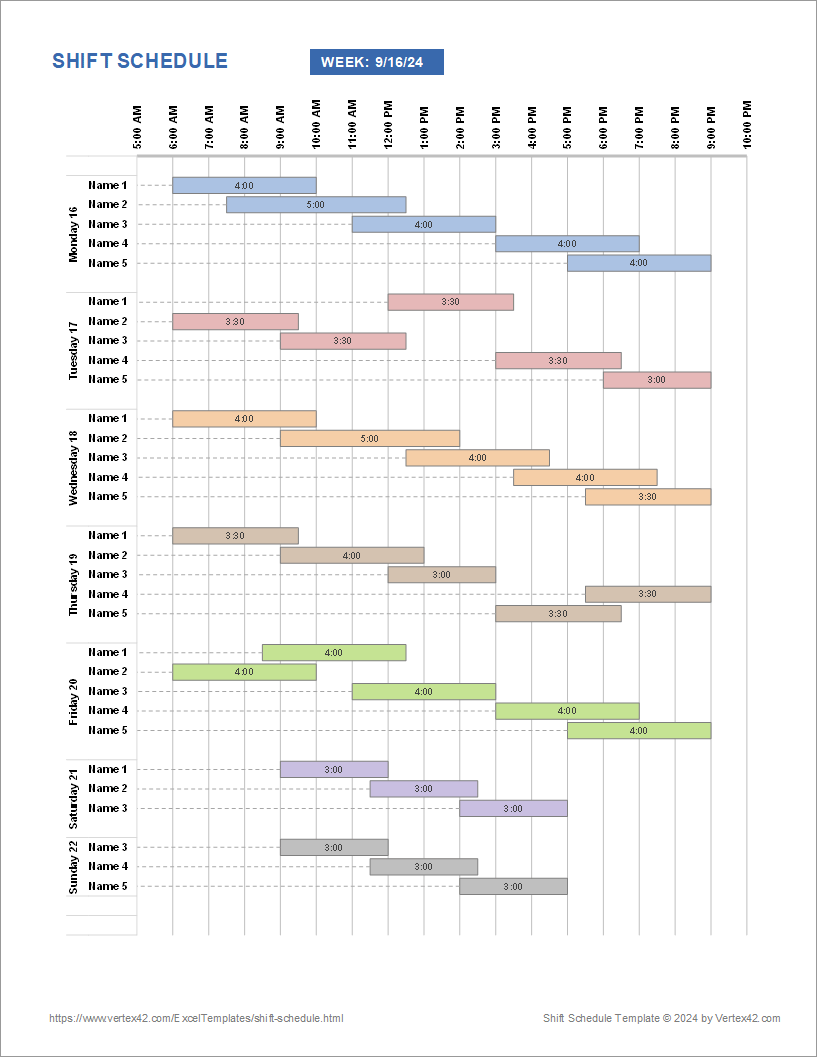
Link: https://www.vertex42.com/ExcelTemplates/shift-schedule.html
Smartsheet: Offers curated collections of free schedule templates including shift schedules, rotating schedules, and on-call calendars. Templates are available in multiple formats (Excel, Word, PDF) and organized by use case to help you find the right fit quickly.
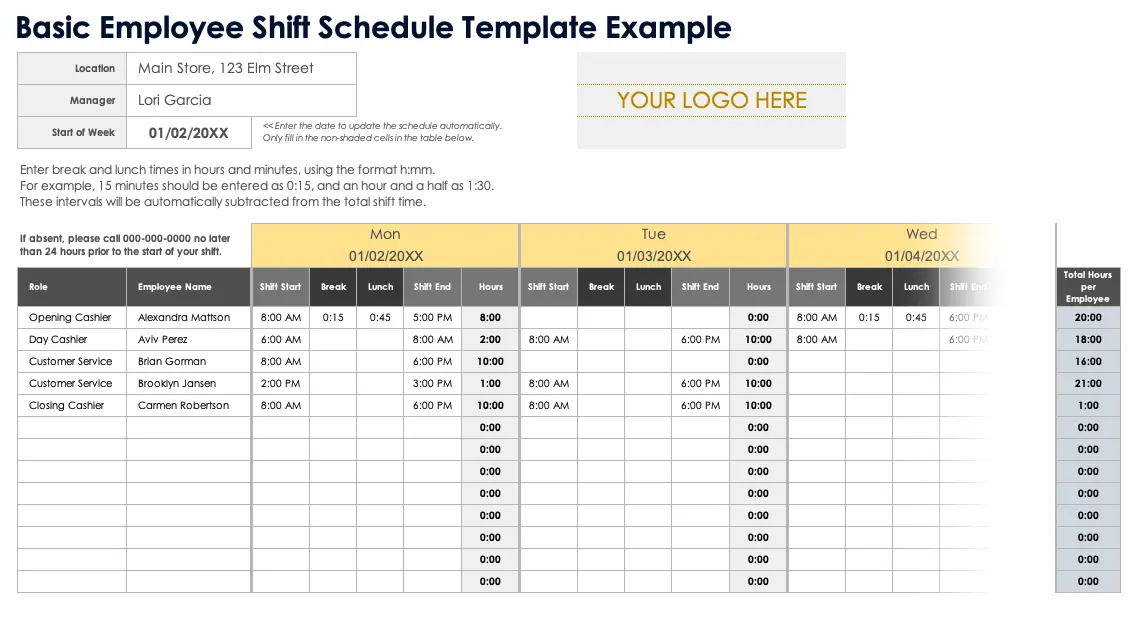
Link: https://docs.google.com/spreadsheets/d/16aXplHraE87cHnAtOwDCUsROac9wwQqCbZ0dSQWDriY/edit?usp=sharing
Homebase: Free weekly schedule templates and a shift schedule template built for hourly teams — plus a full scheduling tool if you want to skip static files altogether.
Most templates are customizable, so you can adjust columns, add your branding, and modify the layout to match your needs. Download a few options and test which format works best for your team before committing to one.
When to upgrade from spreadsheets to scheduling software
Spreadsheets work until they don't. Knowing when to make the jump to scheduling software saves you time and prevents costly mistakes.
Signs you've outgrown manual scheduling
Templates work great when you're starting out, have a small team, or run simple operations. Watch out for these signs:
- You're spending 3+ hours weekly building and updating schedules,
- Shift swaps happen through texts and group chats instead of a proper system,
- You've made costly mistakes like double-booking employees or missing overtime violations,
- Your team keeps missing schedule updates because printed copies get lost or emails go unread,
- You have to manage scheduling for multiple locations with more than 15 employees,
If some of the above sounds familiar to you, it’s probably time you give up spreadsheets and start considering using a dedicated work schedule generator.
What scheduling software provides that spreadsheets can't
Modern employee scheduling software solves problems spreadsheets simply can't address, such as:
- Automatic notifications: Schedule changes push instantly to employee phones. No more wondering if everyone saw the update.
- Self-service features: Employees request time off, claim open shifts, and propose swaps directly in the app. You approve or deny with one click.
- Compliance tracking: The software monitors overtime automatically, flags potential violations, and enforces break requirements before problems happen.
- Labor cost visibility: See projected costs as you build schedules. Stay within budget by adjusting coverage before you publish.
- Time clock integration: Scheduled hours sync with actual worked hours automatically. No manual comparison or data entry for payroll.
- Mobile access: Managers and employees access schedules from anywhere. Make changes from home, and your team sees updates immediately.
- Shift trading: Employees propose swaps directly in the app. You approve with one tap instead of mediating over text.
Is there a free employee scheduling app?
Yes. Several scheduling apps offer genuinely free plans—not just trials. Homebase provides free scheduling for one location with unlimited employees. The free plan includes schedule creation, mobile access, team messaging, shift swapping, and time-off requests. You can use it indefinitely without paying.
Other options like ZoomShift offer limited free starter plans for small teams. Apps such as Humanity also provide free trials so you can test features before committing to paid plans.
How Homebase makes employee scheduling simple
Homebase is built specifically for hourly teams—with scheduling, time tracking, payroll, and team communication combined in one platform:
- Build schedules in minutes: Drag-and-drop scheduling lets you create weekly schedules faster than spreadsheets. Copy previous weeks as templates or use auto-scheduling to generate optimized schedules based on availability and labor budgets.
- Labor cost forecasting: See projected labor costs in real-time as you build schedules. Set budget targets and get alerts when you're approaching limits.
- Availability management: Employees update their availability directly in the app, and you see it in real-time when building schedules.
- Automatic notifications: Team members get instant push notifications when schedules publish or change.
- Shift trading: Employees request shift swaps through the app, qualified team members can claim the shift, and you approve with one tap.
- Mobile access: Managers and employees access schedules from anywhere on iOS and Android devices.
- Time clock integration: Homebase's built-in time clock syncs directly with schedules, so hours flow automatically to timesheets.
- Compliance tools: Set up overtime alerts, break enforcement, and scheduling rules based on your local labor laws.
- Template library: Save schedule templates for different scenarios—busy weeks, holidays, seasonal patterns.
Ready to stop wrestling with spreadsheets? Homebase's free plan includes full scheduling functionality for one location with up to 10 employees.
FAQs about creating work schedules
What's the best free way to create a work schedule?
Google Sheets is the best free option if you want a simple template. For something more functional, with notifications, shift swaps, and time tracking built in, Homebase's free plan covers all of it for one location with unlimited employees.
How do I create a work schedule for 5 employees?
Start with availability, map your coverage needs, and build shifts around your busiest periods. For five employees, a Google Sheets template works fine. If shift swaps or last-minute changes are a regular headache, a free app like Homebase handles that automatically with built-in open shifts that employees can claim themselves.
Can I create a work schedule in Excel for free?
Yes. Excel is free if you already have Microsoft 365, and free schedule templates are widely available. The tradeoff is manual effort: no automatic notifications, no conflict detection, and no built-in way for employees to swap shifts. If you want to learn how to get the most out of it first, see our guide on how to make a schedule in Excel.
How far in advance should I create an employee work schedule?
At least one week. Two weeks is better. Employees who know their schedules earlier show up more reliably and request changes through the right channels instead of last-minute texts. Some states with predictive scheduling laws require advance notice, so check your local regulations.
Start building schedules that actually stick
The right method depends on your team. Spreadsheets work fine when you're small and shifts are simple. But once you're spending real time on scheduling every week, or fielding constant texts about swaps and changes, a dedicated tool earns its keep fast.
Homebase's free scheduling tool is built for exactly this: hourly teams, real businesses, schedules that need to get out the door quickly. Build your first schedule in minutes and publish it to your whole team at once. No spreadsheet required.

Kerry McCreadie is the Senior Manager of Organic Growth at Homebase, leading SEO and content strategy for small businesses with hourly teams. With over 10 years of experience, Kerry has developed hundreds of templates and resources for business owners. They've run an arts and culture nonprofit for over a decade and operated their own photography business, bringing hands-on small business understanding to everything they create.

.webp)
Kerry McCreadie is the Senior Manager of Organic Growth at Homebase, leading SEO and content strategy for small businesses with hourly teams. With over 10 years of experience, Kerry has developed hundreds of templates and resources for business owners. They've run an arts and culture nonprofit for over a decade and operated their own photography business, bringing hands-on small business understanding to everything they create.
