Stop rebuilding your schedule from scratch every week. Download a free weekly schedule template in Excel or Google Sheets.
weekly employee schedule template

What's inside the template?
A free, ready-to-use weekly work schedule that helps you organize shifts, track hours, and plan coverage without starting from scratch.

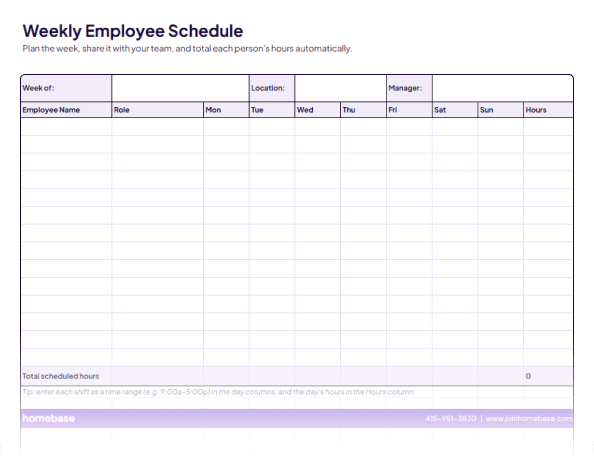
Seven-day shift layout.
One row per team member, one column per day. Fill in shift start and end times and see the full week at a glance.
Roles and departments.
Add each person's position so everyone knows where they're supposed to be and you have coverage for every department.
Total hours calculated.
Built-in formulas add up each employee's weekly hours automatically so you can spot overtime risk before it hits your payroll.

Did you know?
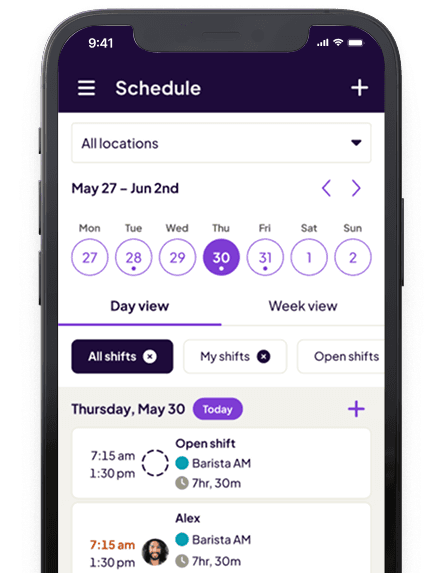
The Homebase app has a built-in schedule builder. Build your team's weekly schedule in minutes, publish it with one tap, and your team sees their shifts on their phones right away.
Save schedule templates so you're not rebuilding from scratch every week.
Your team gets their shifts on their phones the moment you publish.
They can request time off, trade shifts, and update their availability right in the app.

Small business intel, in
your inbox
Table of contents
What is a Weekly Employee Schedule Template?
A weekly employee schedule template is a pre-built document that helps managers plan their team's shifts for the week. Instead of starting from scratch every time, you fill in the same structure: employee names, days of the week, shift start and end times, and total hours worked.
Many small businesses start out using schedule templates in Excel or Google Sheets. For a small team with a fairly predictable schedule, they are often a solid place to start. The tradeoff is that a template only does what you put into it. Every update, every shift change, every coverage swap has to be entered by hand.
What to Include in your Weekly Work Schedule
A useful weekly schedule gives your whole team the information they need to show up at the right place, at the right time, and ready to work. That means including:
- Employee names and roles. One row per person. Add their position or department so there is no confusion about who does what.
- Days of the week. Columns for each day, typically Sunday through Saturday. Match the column order to how your workweek runs.
- Shift start and end times. Be specific. "9am to 5pm" is clearer than "morning shift" and leaves less room for misunderstandings.
- Total weekly hours. A running total per employee helps you catch overtime risk before it becomes a payday surprise.
- Notes or special instructions. A column for notes is useful for things like "open the store" or "cover the register from noon to 2pm."
Some teams also add an hourly rate column to estimate weekly labor costs, or use color-coding to make shifts easier to read at a glance.
How to Fill out the Template (Step by Step)
Here's how to create your weekly work schedule using the template. Follow these steps and your weekly schedule will be ready in no time:
Step 1: Add your team members. List each employee in their own row. If you have multiple departments or locations, group them together so the schedule is easier to read.
Step 2: Check availability before you schedule. Before you assign any shifts, confirm who is actually available. Note time-off requests and any schedule restrictions so you are not filling in conflicts you will have to fix later.
Step 3: Assign shifts. Enter start and end times for each person across the week. Keep your local break and rest requirements in mind as you go.
Step 4: Review the weekly totals. Look at each employee's total hours. If anyone is approaching 40 hours and you want to avoid overtime, adjust shifts now rather than finding out on payday.
Step 5: Share the schedule. Send it by email, post it in a shared drive, or print it and put it somewhere visible. Give your team enough lead time to plan around their shifts.
Step 6: Save it for next week. A completed schedule is your best starting point for the following week. Duplicate the file, clear the shift times, and update what changed.
Tips for a Better Weekly Work Schedule
- Set a publishing deadline and stick to it. If your team knows the schedule is always posted by Thursday for the following week, they stop asking. Consistency builds trust.
- Collect availability before you start. A schedule built without checking availability leads to callouts and last-minute scrambles. Ask your team to submit availability and time-off requests before you sit down to schedule.
- Put your most experienced people on your busiest shifts. Look at your highest-traffic days and times. That is where your strongest team members make the biggest difference.
- Leave a little breathing room. Do not schedule every person to their maximum hours. A team member with a lighter week gives you a built-in option when someone calls out.
- Keep a short list of on-call team members. Know who can come in on short notice. Even two or three names saves a lot of panic when coverage falls through.
Weekly Employee Schedule Template FAQs
How far in advance should I post the employee schedule?
Two weeks is the standard for most hourly teams, and a growing number of cities and states require advance notice by law. At minimum, give your team one full week. The more lead time you provide, the fewer last-minute callouts you will deal with. People plan their lives around their shifts, and a schedule that drops at the last minute creates problems that land back on you.
What should I do when a team member's availability changes?
Collect it in writing before you start scheduling each week. Verbal updates are easy to forget and hard to reference later. The simplest approach is a standing form or message thread where team members submit availability changes before your scheduling day. With Homebase, your team can update their availability directly in the app, and you will see it before you build the next schedule.
Can I use this template for multiple locations or departments?
You can, though it gets complicated fast. Most managers duplicate the file for each location or create a separate tab for each department. If you are scheduling across more than one location, Homebase lets you manage both in one place and see how hours are distributed across locations, without keeping multiple spreadsheets in sync.
When a Spreadsheet is Not Enough Anymore
A template works well until it doesn't. If any of these are part of your week, it might be time to try something that does more:
- Scheduling takes you more than an hour a week. A template cuts setup time, but it does not automate anything. If you are still spending your Sunday night rebuilding the schedule, that time adds up.
- Your team is not seeing the schedule until it is too late. A shared spreadsheet is only as visible as the last time someone thought to check it.
- Time-off requests are coming in through texts, DMs, and sticky notes. There is no clean way to track requests in a spreadsheet once your team grows past a few people.
- Coverage problems keep finding you. If you are the one making calls to fill a last-minute gap, your scheduling process is working against you instead of for you.
Homebase was built for this. You can build your team's weekly schedule in minutes, publish it instantly, and let your team view shifts, request time off, and trade coverage from their phones without involving you every time. Free to start, no credit card needed.
Related Templates
Check out moreSmall Business Tax Deductions
Starting a Small Business Checklist
Weekly Employee Schedule Template
Shift Report
Attendance Policy
Pay Stub Template

Manage your team better today.
Managers save 5+ hours a week with Homebase